Fix FaceFusion Video Format Error: Incompatible Encoding Solution
While using FaceFusion again, some videos triggered the following error:
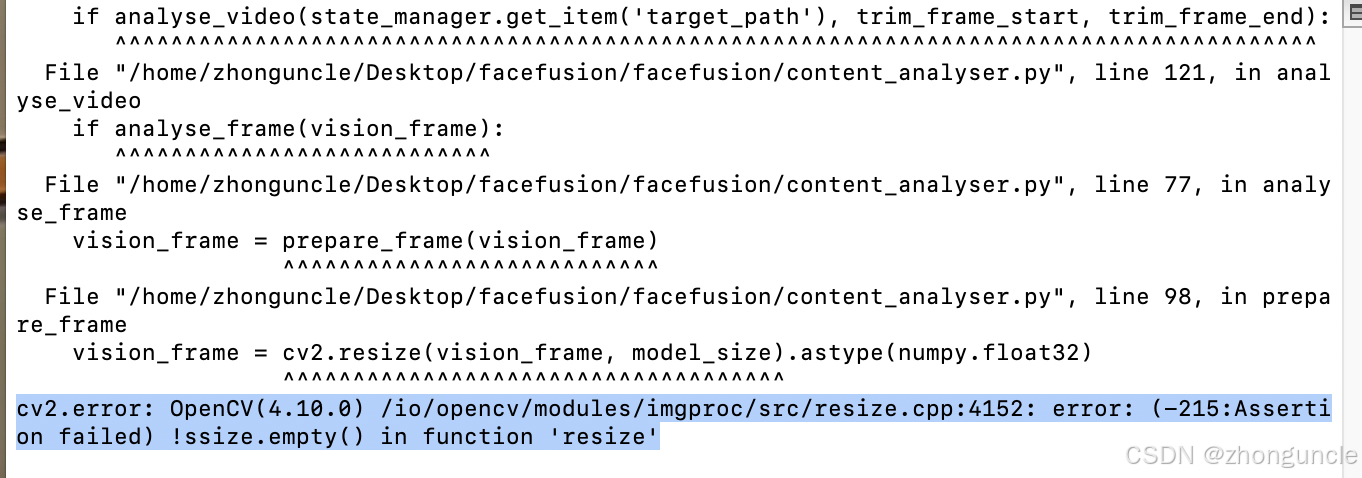
This issue stems from incompatible video formats. Many video formats are more complex than they appear—even if two videos share the same container format (e.g., MPEG-4), their underlying encoding or settings may differ significantly.
You might wonder: “Why can I play the video fine with regular players?” That’s because mainstream media players (like VLC) have extensive compatibility after testing countless video variants. For example, some videos may glitch in Apple’s default player but work perfectly in VLC.
Simple Solution: Transcode the Video
The fix is straightforward—use a reliable transcoding tool like FFmpeg to convert the video to a more compatible format.
Key Note: Avoid FFmpeg’s Copy Mode
Do not use FFmpeg’s copy mode (stream copy) for this fix, as the root cause is often faulty encoding. Stream copy only duplicates the original encoding, which won’t resolve compatibility issues.
Option 1: Basic Transcoding (No Bitrate Concerns)
If you don’t mind potential bitrate changes, use this simple command:
ffmpeg -i in.mp4 out.mp4
Option 2: Preserve Original Bitrate
To retain the original video’s bitrate, first retrieve it with ffprobe (FFmpeg’s companion tool). This command returns the bitrate as a numerical value, making it easy to integrate into scripts:
bitrate=$(ffprobe -v quiet -select_streams v:0 -show_entries stream=bit_rate -of default=noprint_wrappers=1:nokey=1 <input_video>)
Replace <input_video> with your video file path. You can then use this $bitrate variable in FFmpeg to transcode while preserving the original bitrate (ideal for maintaining quality).
I hope these will help someone in need~