Ubuntu can't access Network: No DNS or APT Failure in Setting
The final solution in this article is to delete the connected/configured Wi-Fi and reconnect to it.
Why write so much? Mainly to document the discovery process, some symptoms, and that certain online solutions may make the situation worse.
For some unknown reason, APT suddenly stopped working: only a few default repositories were accessible, while others showed ign (meaning they couldn’t be connected to). I tried several mirrors, but the issue persisted. At this point, Wi-Fi was connected, so I suspected a GPG key problem. However, as I tried to fix it, the network stopped working entirely:
(base) zhonguncle@zhonguncle-Precision-Tower-5810:~$ ping baidu.com
ping: baidu.com: Temporary failure in name resolution
Step 1: Check Wi-Fi Module
First, check if the Wi-Fi module is functioning properly:
$ lspci | grep Wi-Fi
07:00.0 Network controller: Intel Corporation Wi-Fi 6 AX210/AX211/AX411 160MHz (rev 1a)
The Wi-Fi module was working, so I guessed it might be a DNS issue. Although checking various files showed that DNS server IPs were set, and I even tried directly modifying the configuration file /etc/resolv.conf (which is supposed to be auto-generated), the GUI settings also displayed configured DNS servers.
However, when I checked with resolvectl status, I found there were no DNS servers configured:
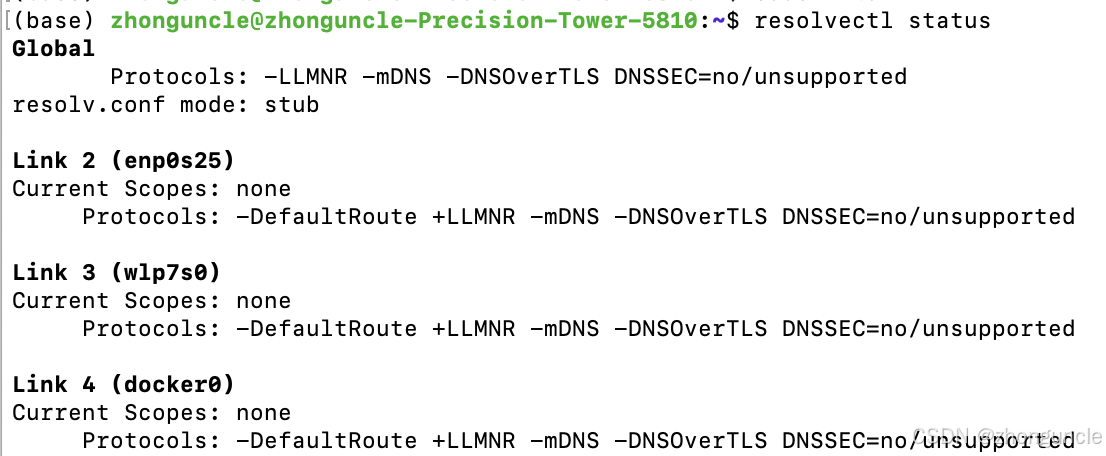
Step 2: Check Firewall
I suspected the firewall might be the cause. Checking with sudo ufw status revealed that most IPs used for internet access were not in the firewall’s allowed range (I thought I was about to fix it then). However, after manually adding them following some online tutorials, the issue persisted—I still couldn’t ping through.
You might say this is too troublesome and suggest reinstalling the system.
I can only say that the time required to reinstall and reconfigure the system far exceeds my acceptable range, and there are many files on the hard drive—I can’t even bear the thought of backing them up.
Step 3: Check Network Interfaces with networkctl
Moving on, checking with networkctl showed that the interfaces had no active operations:
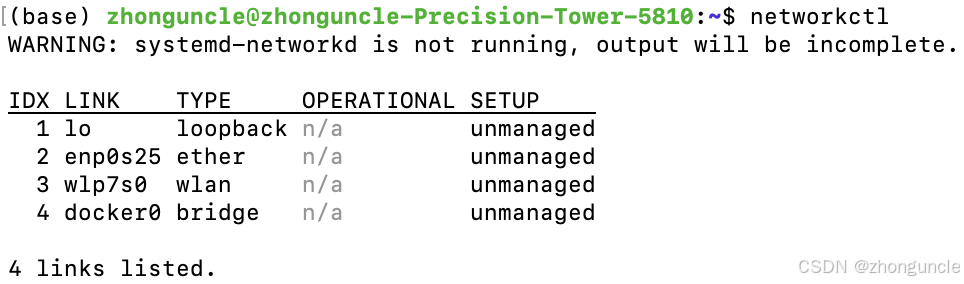
Restart it with sudo systemctl start systemd-networkd:

But I still couldn’t ping through.
Step 4: Try GRUB Recovery Mode
I then tried many other methods, such as restarting services and modifying a series of configuration files. However, many online solutions are outdated, so none worked. As usual, I entered GRUB’s recovery mode to check:
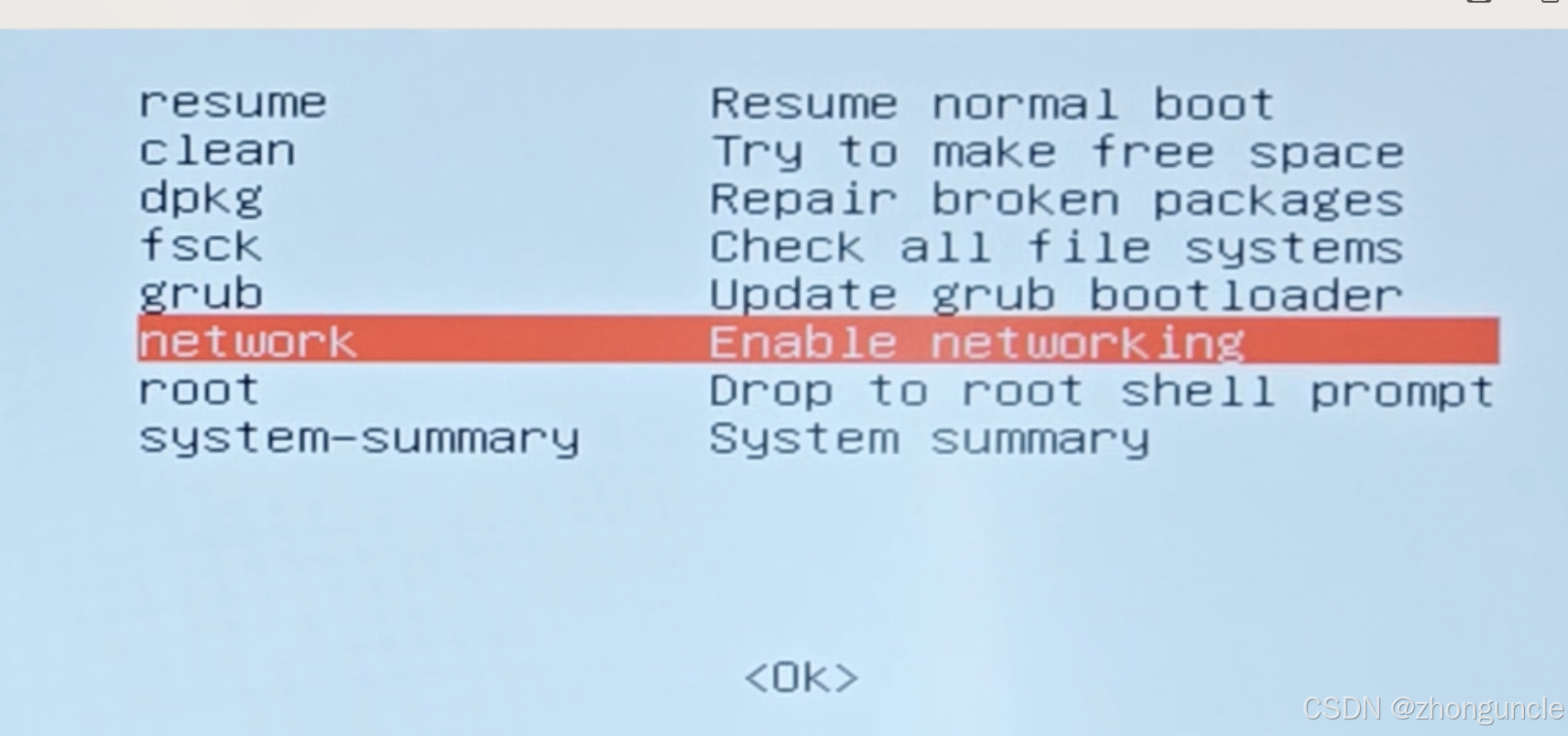
When checking the network, the following error appeared (it flashed too quickly later, so I captured it with a screen recording):

This clearly indicated issues with some files. Since I had tried a bunch of online solutions—some very irresponsible ones that directly deleted certain files without explanation (and I was a bit desperate)—I decided to take a break.
The Final Solution: Reconnect Wi-Fi
After waking up, it suddenly occurred to me: since restarting Wi-Fi, services, or the machine didn’t fix the problem, the issue must lie in the automatic file configuration process (as many configuration files are auto-generated by the system, such as /etc/resolv.conf mentioned earlier).
I suddenly noticed that although the firewall hadn’t automatically allowed internet IPs, the previous settings were still intact. I still thought it was a firewall issue because, in theory, the system should obtain IP, DNS, and other network configurations via the router’s DHCP, but something was blocking it. Since I hadn’t modified the gateway settings before, the problem must be with the firewall.
Unfortunately, I couldn’t recall the original correct firewall configuration. At this point, I wondered: could I make it auto-generate again? I turned Wi-Fi off and on again—no luck. Restarted network services—still no luck……
Staring at the nmtui interface, I fell silent:
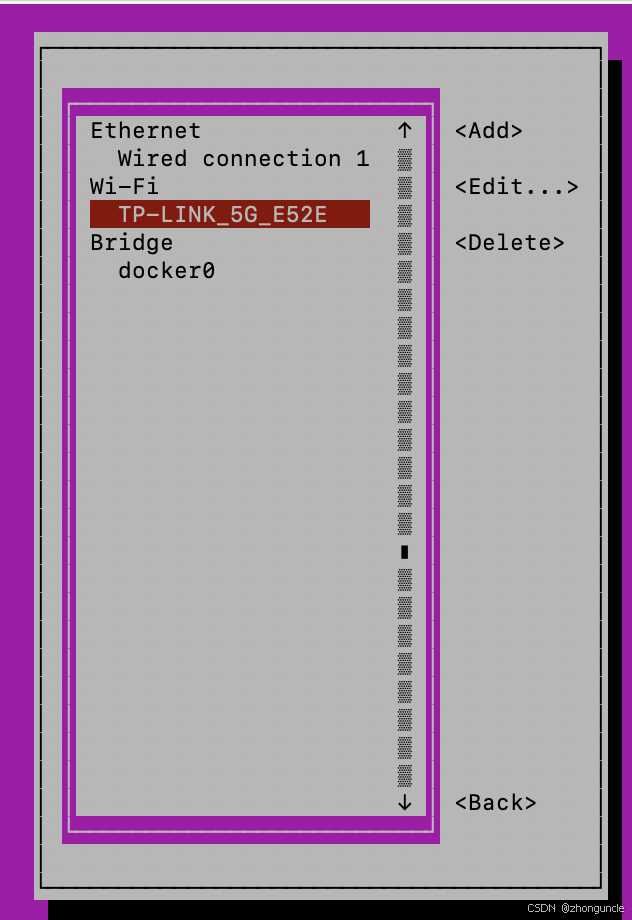
It suddenly hit me: the system stores Wi-Fi information by SSID. Deleting the existing connection and reconnecting might remove the original configuration files (whether they were missing or corrupted) and auto-generate new ones. I decided to go for it—it wouldn’t cause any irreversible damage.
Note: If you’re remotely connecting to Ubuntu via Wi-Fi, you may need to connect an Ethernet cable or a monitor.
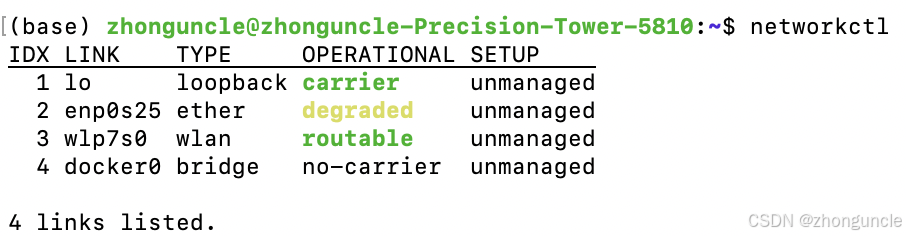
After re-adding the Wi-Fi connection, networkctl showed it was active automatically:
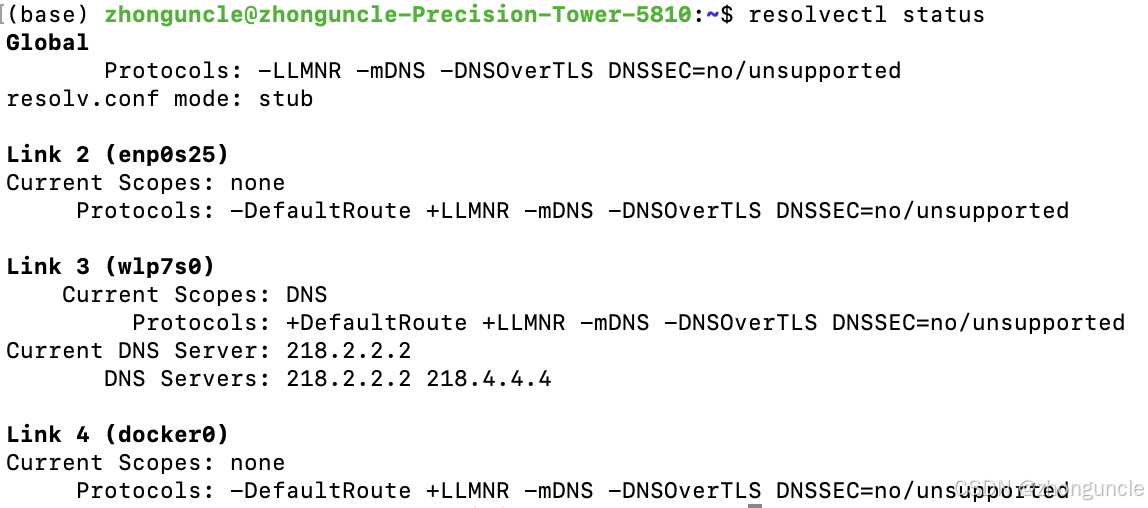
Checking with resolvectl status showed that DNS was correctly configured:
Did it work? Let’s run a ping test:
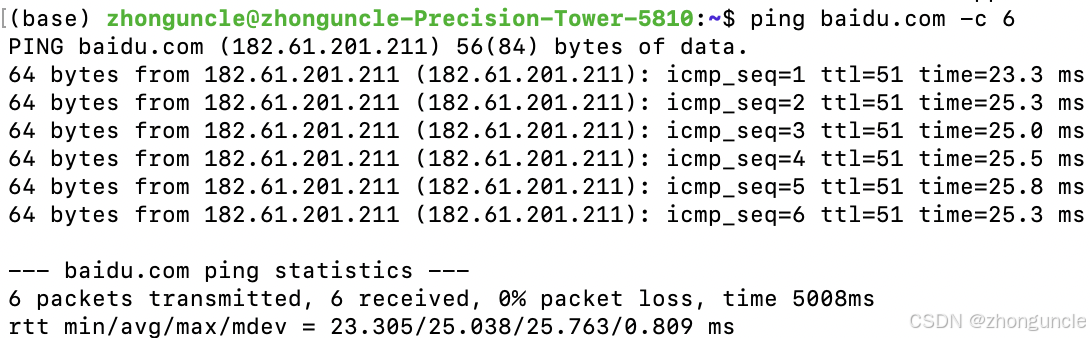
Perfect! I checked the ufw rules afterward and found there were more allowed entries than before. However, I don’t recommend messing with firewall rules—reconnecting Wi-Fi is much faster and less likely to open unnecessary ports.
I hope these will help someone in need~