Mac Suddenly Slow on Local Network (SMB, NFS, SCP, SSH, Ping, etc. Are All Slow)
Today, SMB suddenly got slow again—only about 8-9 MB/s. It’s well-known that Apple’s SMB is prone to sudden slowdowns. I tried installing NFS, but it was still slow. I was frustrated. I checked other scenarios like scp, and they were all slow too—yet my internet download speed was still fast.
For example, here’s the iperf test result:
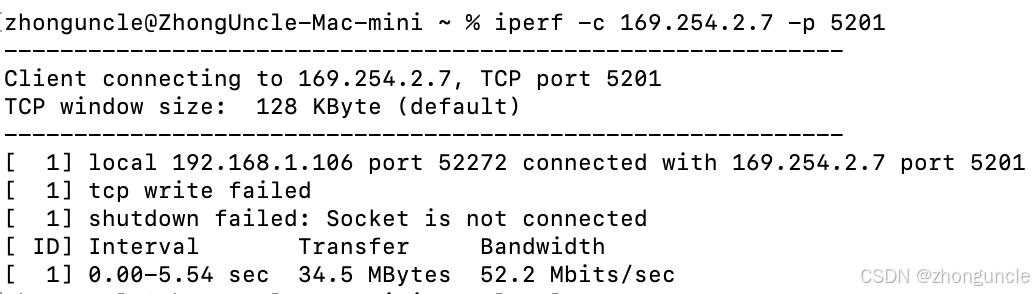
To put it bluntly: if only one service is slow, it’s a service issue. But when everything is slow, that’s scary.
During this time, I tried countless methods, read numerous posts and documents—but none worked (I’ll link some useful ones at the end; they didn’t help with this specific issue, but are good for expanding knowledge).
When I ran out of ideas, I started using Ping to check the route. I suspected something was interfering in the middle (I wasn’t even using a switch—just a direct connection), but unfortunately, there was nothing unusual. I also tried different Ethernet cables, a USB-to-RJ45 adapter, and the RJ45 port on my monitor. I even tested with Windows, and it worked normally.
After hours of frustration, I accidentally unplugged the Ethernet cable while pinging—and discovered something shocking: the IP packets were being sent via Wi-Fi but received via the Ethernet interface (below, Src is the IP of Mac’s built-in Ethernet interface, Dst is the IP of Ubuntu’s Wi-Fi interface):

Wow, finally found the problem!
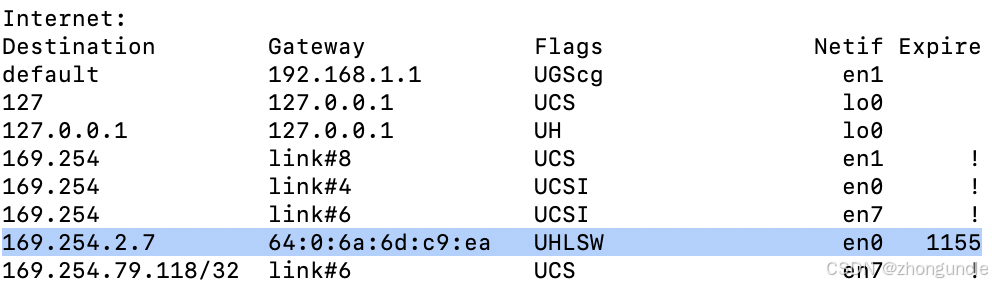
Unfortunately, I didn’t run netstat -rn to check before fixing it. But afterward, when DHCP was enabled again for automatic IP assignment, netstat -rn showed that the network interface (Netif = network interface) for accessing IP 169.254.2.7 was en1 (spoiler alert):
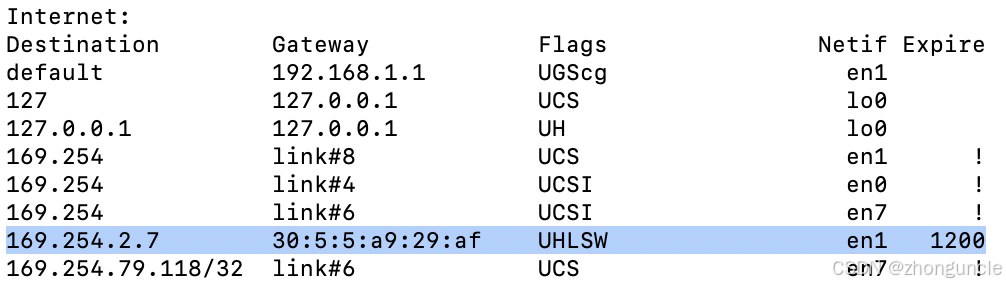
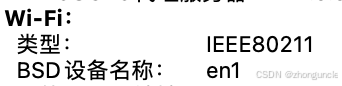
And en1 is the BSD device name for Wi-Fi:
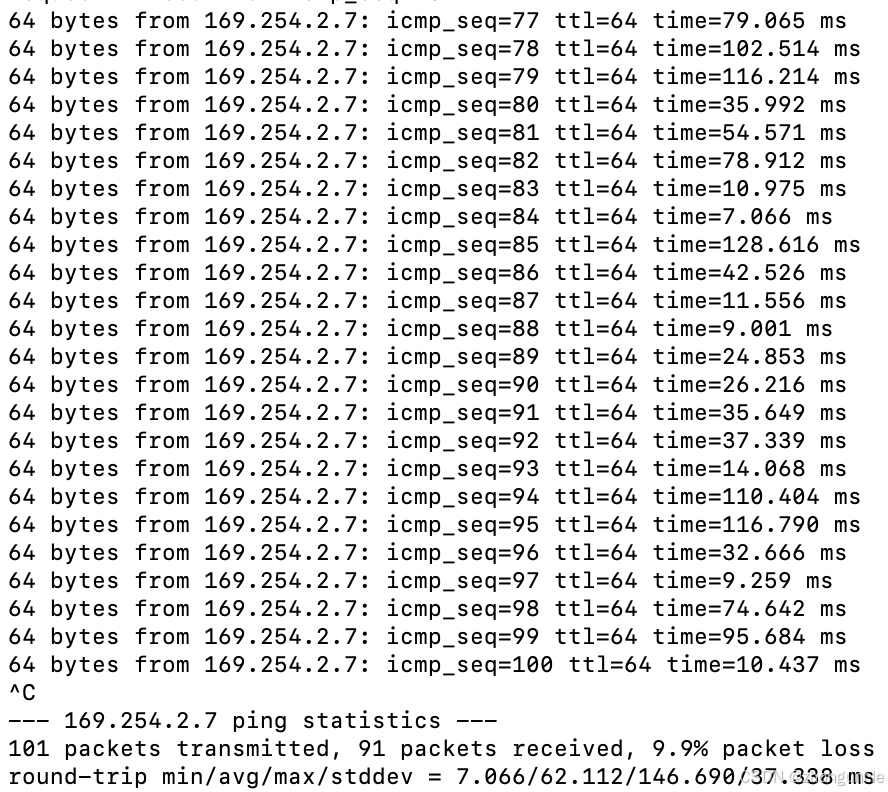
Also, the Ping latency was way too high for a twisted-pair cable. It’s just a short cable—I even tried a 15cm one, but it didn’t help (look at the max/average/min values below; the fluctuation is huge):
You might ask: Didn’t you suspect Wi-Fi was the culprit when you noticed the slowness?
I did! I even checked the router admin interface, but unfortunately, it only showed internet speed—not LAN speed. I also forgot to check the TX/RX counters.
Now that we’ve identified the root cause, it’s time to fix it.
Why was I so sure it was an IP issue?
Three years ago, I made a video about the Dell U2723QE monitor (you can probably find my Bilibili account through it, haha). A comment said the monitor’s Ethernet port didn’t work.
When I tested it, I found that macOS’s DHCP is slow—sometimes it even fails to assign an IP, rendering the interface useless. The fix was to toggle the interface on and off.
Experience really does build up.
As you can see, the default gateway is
192.168.1.1viaen1. So traffic initially goes through Wi-Fi—after all, most modern Macs don’t have built-in Ethernet ports and rely on Wi-Fi.
The default subnet mask was 255.255.0.0. Logically, the two interfaces shouldn’t conflict, but they did. Let’s try manually setting the IP address and subnet mask. Here’s what I changed it to:
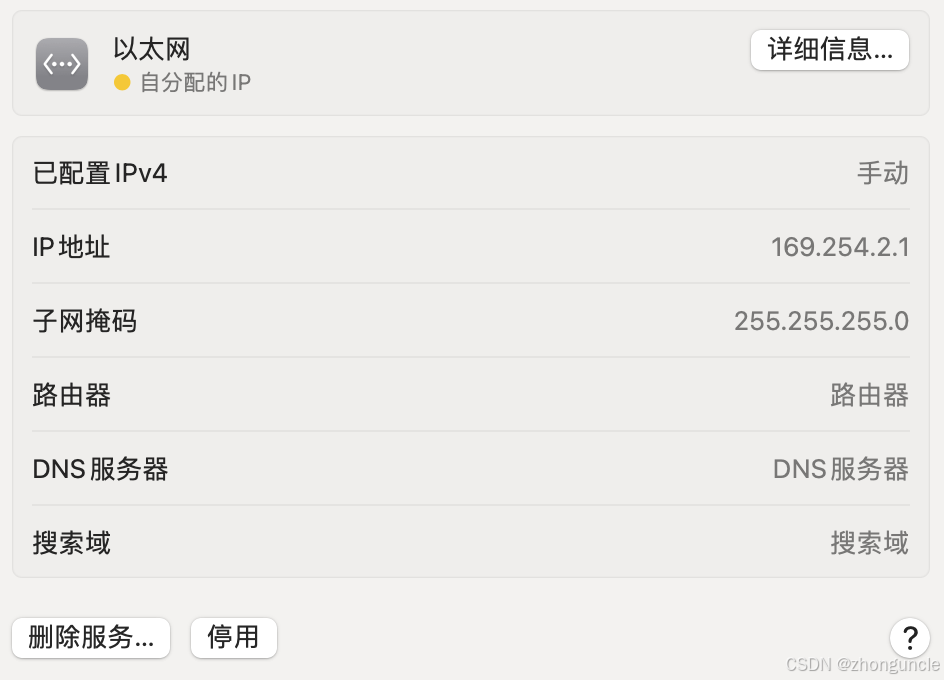
Okay, let’s test again.
IP address and interface are correct:
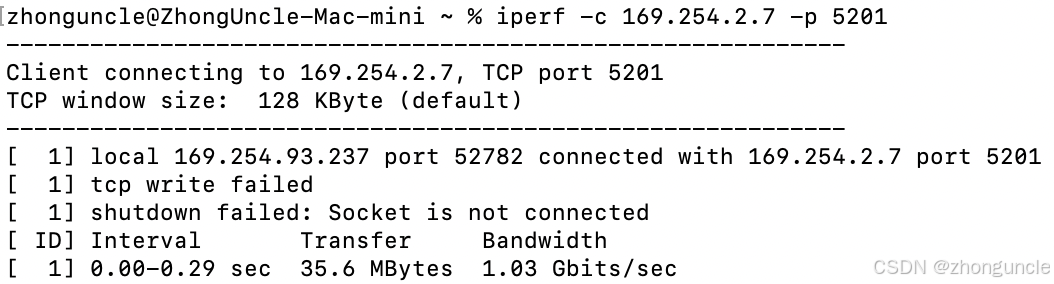
iperf test shows full Gigabit speed:
SMB server transfer speed is also correct:
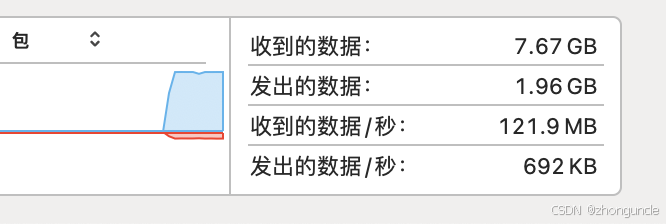
Perfect! It worked immediately after the change.
If you’re still having issues, check the server’s netmask (or Genmask). Try to minimize the broadcast domain. For example, when I ran netstat -rn on the server, I found both interfaces were mapped to the 169.254.x.x IP block—this could naturally cause the problem I faced:
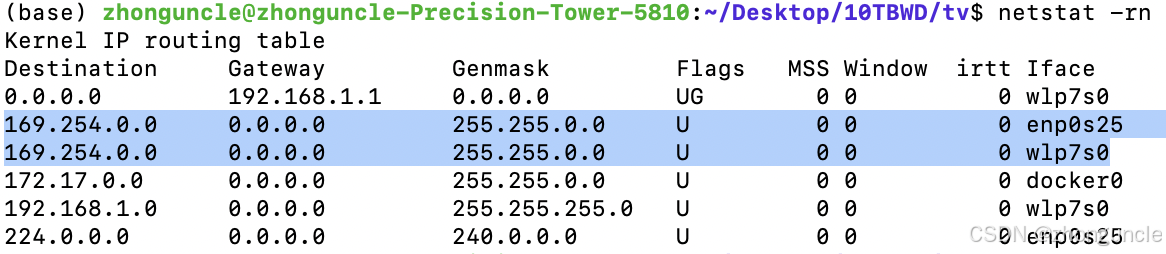
Updated on June 28, 2025
I explained why both interfaces map to the169.254.x.xIP block in my article What’s the Difference Between Private-Use Networks and Link Local? What’s the Relationship Between Peer-to-Peer Wi-Fi and Wi-Fi Direct? If you’re interested, check it out.
I’m not sure how universal this fix is, but I’ll update this post if I encounter similar issues in the future.
I hope these will help someone in need~
Further Reading
Below are some resources I found while troubleshooting (the first two are the most useful):
Adjust SMB browsing behavior in macOS - Apple Support: Official Apple training material. It mentions: “To speed up SMB file browsing, you can prevent macOS from reading .DS_Store files on SMB shares. This makes Finder display each folder’s contents immediately in alphanumeric order using only basic information.”
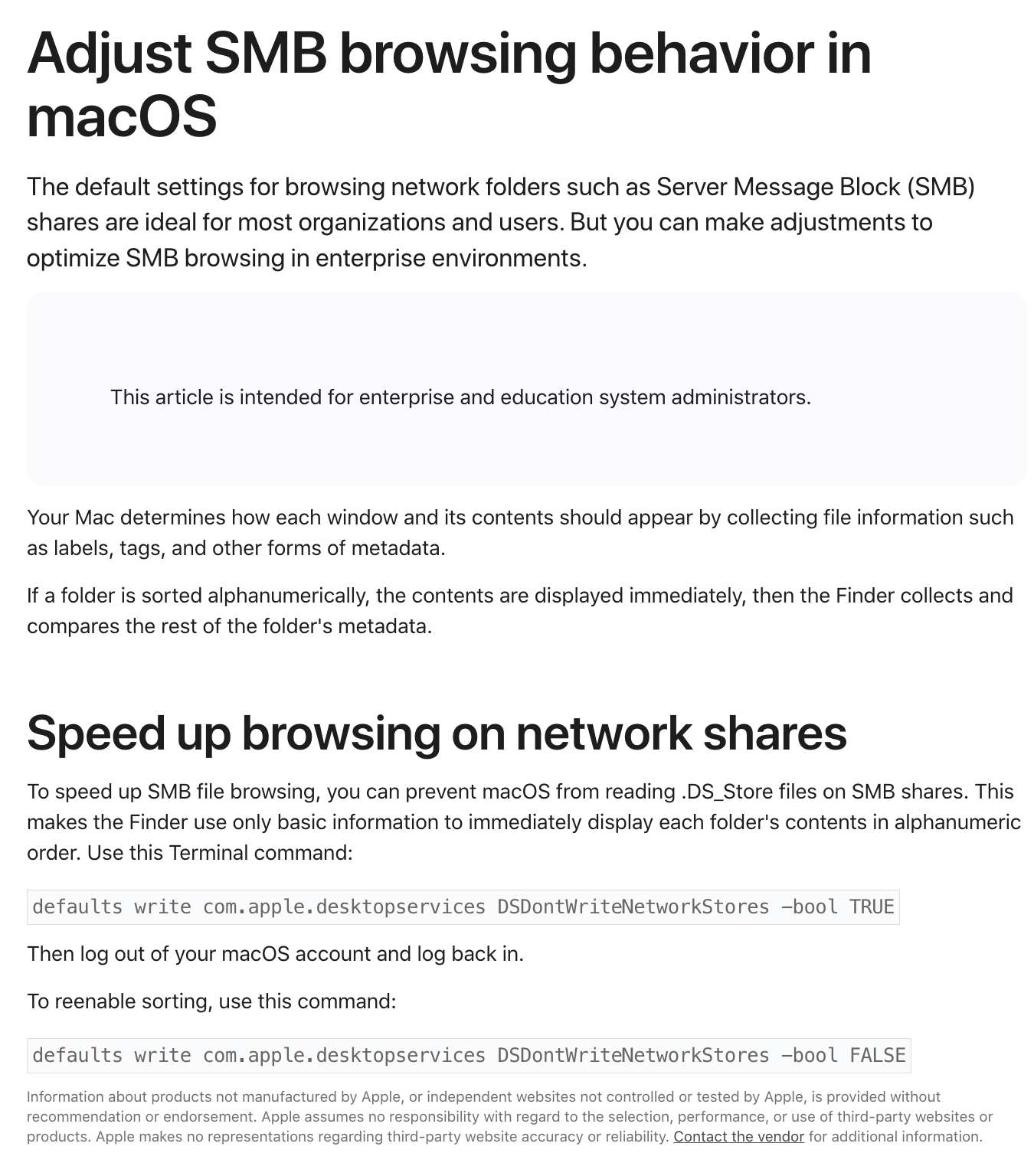
How to disable SMB 1 or NetBIOS in macOS - Apple Support: Similar to the above, but explains how to disable SMB 1 (outdated and insecure, but more compatible):
PowerEdge: How to Test Network Bandwidth with iperf - Dell Technologies: A concise guide to using iperf from Dell. Unlike many other guides that ramble, this one gets to the point and includes a link to the official iperf homepage for copyright purposes.
FreeBSD Handbook Chapter 31.2 - Gateways and Routing: Explains the meaning of the Flags field in netstat -rn results.